To set your laundromat's holiday hours on Google, open your Business Profile, tap Edit profile, then Hours, then Special hours. Add each holiday with your real hours, or mark it closed. Do Thanksgiving, Christmas Eve, Christmas Day, New Year's Eve and New Year's Day in one sitting.
It takes about five minutes. It saves someone a wasted trip to a locked door, and it saves you the review they'd write about it. Here's the whole job, start to finish, including the part that's easy to forget: making every other place say the same thing.
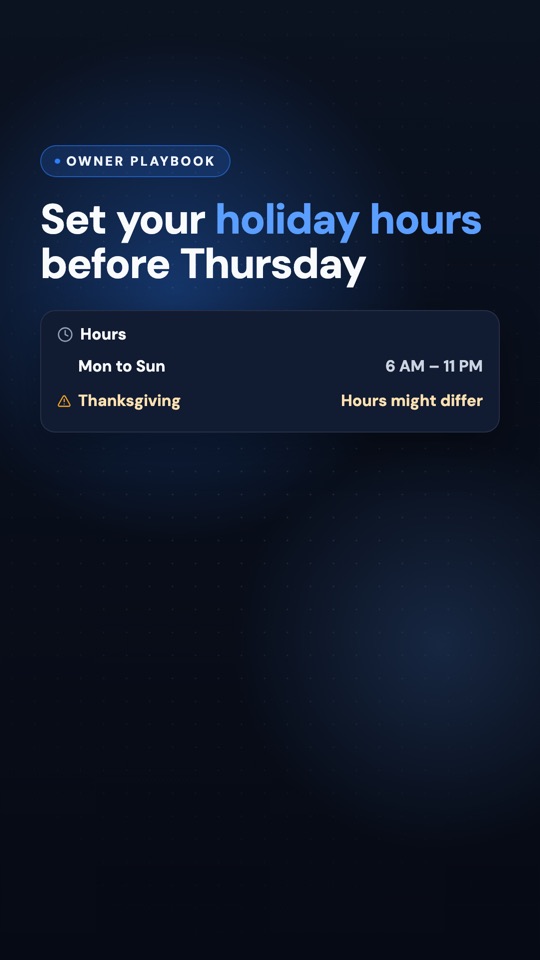
Coming Tuesday, Nov 24 to Instagram, Facebook and YouTube
Set your laundromat's holiday hours on Google before Thanksgiving
We post a short laundromat marketing tip every Tuesday and Thursday on Instagram, Facebook and YouTube.
Follow so you catch it →Why holiday hours matter
Nobody drives to a closed laundromat on purpose. Holidays are when routines change. Family is in town, the sheets and towels pile up, and someone searches for a laundromat to see who's open. If Google shows your regular hours on a day you're closed, you get a frustrated customer in your parking lot. If you're open but your listing doesn't say so, you might get skipped for a store that looks more certain.
Both problems have the same fix. Around holidays, Google may warn searchers that a business's hours might differ. Adding special hours is how you give it a straight answer instead. Nobody drives to a closed laundromat, and nobody skips one they know is open.
Set your holiday hours on Google, step by step
- Open your Google Business Profile. Search your store's name on Google while you're signed in to the account that manages it.
- Tap Edit profile, then Hours.
- Under Special hours, add each date: Nov 26, Dec 24, Dec 25, Dec 31 and Jan 1. Enter your real hours for each day, or mark it closed.
- Open as usual on a holiday? Add it anyway with your normal hours, so people searching can see you're open.
That's the whole job on Google. The screens can look a little different on a phone and a computer, and Google changes them from time to time, but those are the names to look for. Before you save, check that each date is for this season and not last year's.
📅 This season's dates
Thanksgiving is Thursday, November 26. Christmas Eve is Thursday, December 24, and Christmas Day is Friday, December 25. New Year's Eve is Thursday, December 31, and New Year's Day is Friday, January 1, 2027.
Think about the days around the holidays, too. If you'll close early the Friday after Thanksgiving, or run short hours one weekend because your attendant is off, add those dates the same way. Special hours aren't only for official holidays. Use them for any day when your regular hours would be wrong.
An example: one store's holiday hours
Say Spin City Laundry, a made-up store, is normally open every day from 6 AM to 11 PM. Here's what its owner, Dana P., enters under Special hours:
- Thanksgiving, Nov 26: 8 AM to 4 PM
- Christmas Eve, Dec 24: 6 AM to 6 PM
- Christmas Day, Dec 25: closed
- New Year's Eve, Dec 31: 6 AM to 11 PM, her normal hours, added anyway
- New Year's Day, Jan 1: 9 AM to 7 PM
Look at New Year's Eve. Her hours aren't changing, but Dana adds the date anyway, so anyone checking can see the store is open. It's the easiest line to skip and one of the most useful to have. She also tapes a sign to the door with the last wash time on her early-closing days, because someone who shows up an hour before closing with three loads needs to know.
Then update everywhere else, the same day
Google isn't the only place people check. If your website says one thing, Facebook says another and Google says a third, customers don't know which to believe, and some won't bother finding out. So the day you set special hours on Google, update the rest:
- Your website. Put the holiday hours on the homepage, not buried on a contact page.
- Your Facebook page. Update the hours people see there, and post the holiday schedule so followers see it too.
- Your phone greeting. If callers hear a recorded message, record a short holiday version.
- Your AI chatbot or voice agent. If one answers questions for you, update the hours it answers from too. Otherwise it will keep giving out your regular hours with total confidence.
- A sign on the door. For the people who walk up anyway.
For Fresh Leads clients, the chatbot and voice agent step is one message. Send us your holiday hours and we add them to your Locations page in the portal, which is what your AI chatbot and voice agent answer from.
Common mistakes
- Waiting until the week of. Some people plan their holiday laundry days ahead. Set it all now.
- Doing only Thanksgiving. While you're in there, add every date through New Year's Day. It's the same screen.
- Changing your regular hours instead. If you edit your weekly hours for a holiday, you have to remember to change them back. Special hours cover just that date.
- Skipping the days you're open as usual. A holiday with no special hours leaves people guessing.
- Promising hours you might not keep. If you aren't sure you'll have someone to open, post the shorter hours. Opening a little early beats a locked door at the time Google promised.
- Letting the other places drift. Google says closed, your website says open. Pick one set of hours and put it everywhere.
What to do this week
Set aside five minutes today. Add all five dates under Special hours on Google, then update your website, your Facebook page and your phone greeting before you close the laptop.
While you're in your profile, run through the rest of our 10-minute checkup, and if your photos are older than your newest machines, take three new ones. Wrong or missing hours are also one of the reasons a laundromat is invisible on Google Maps, so these five minutes pay off well past the holidays.